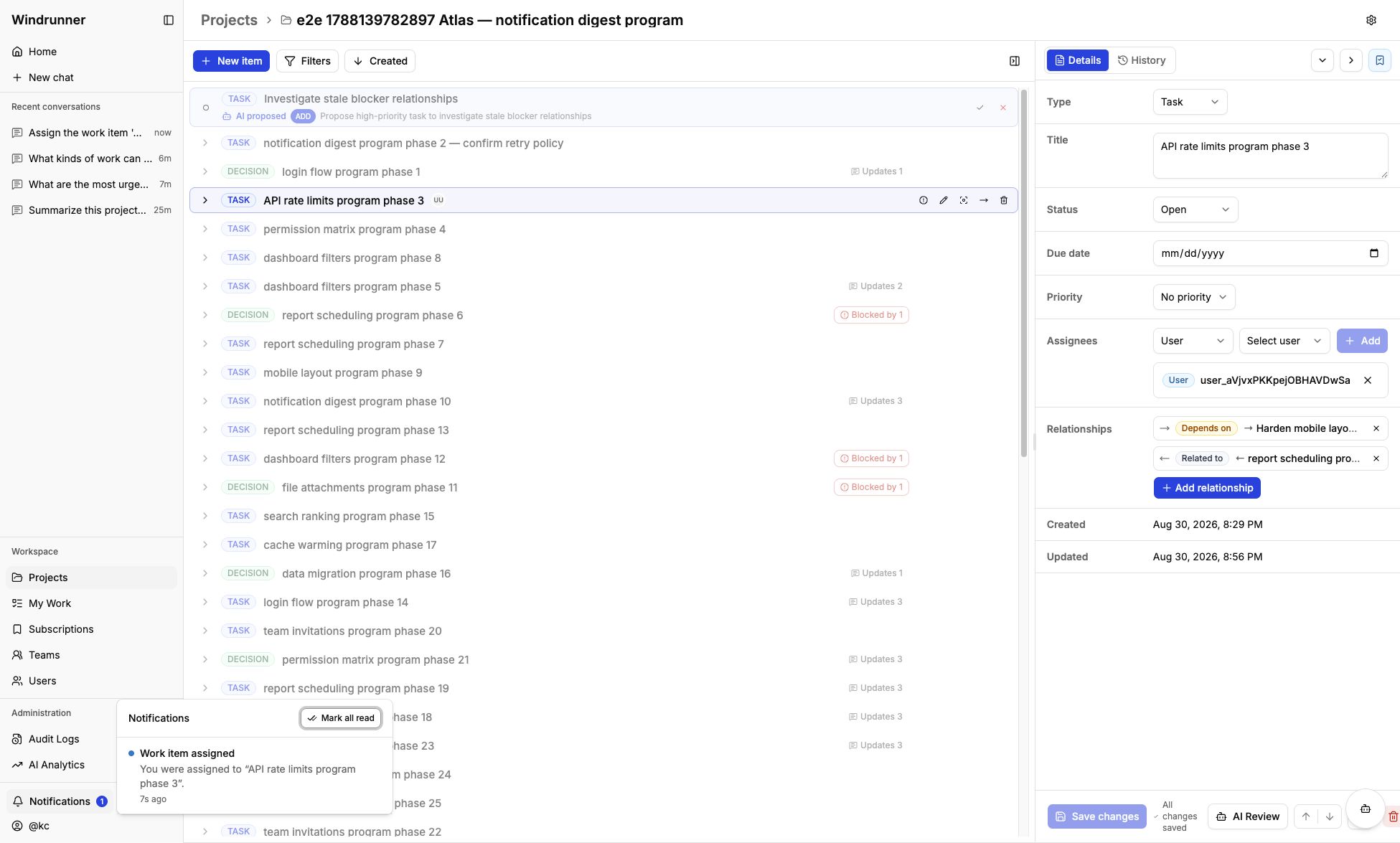
My Work and subscriptions
My Work
My Work shows items assigned directly to you or to a team you belong to, across projects you can access. Use list, grouped, or board view, then search or filter by project, status, and priority.
Subscriptions
Subscribe to follow a work item without becoming its assignee. Subscribing does not change ownership. Unsubscribe from the work item workspace or the Subscriptions page.
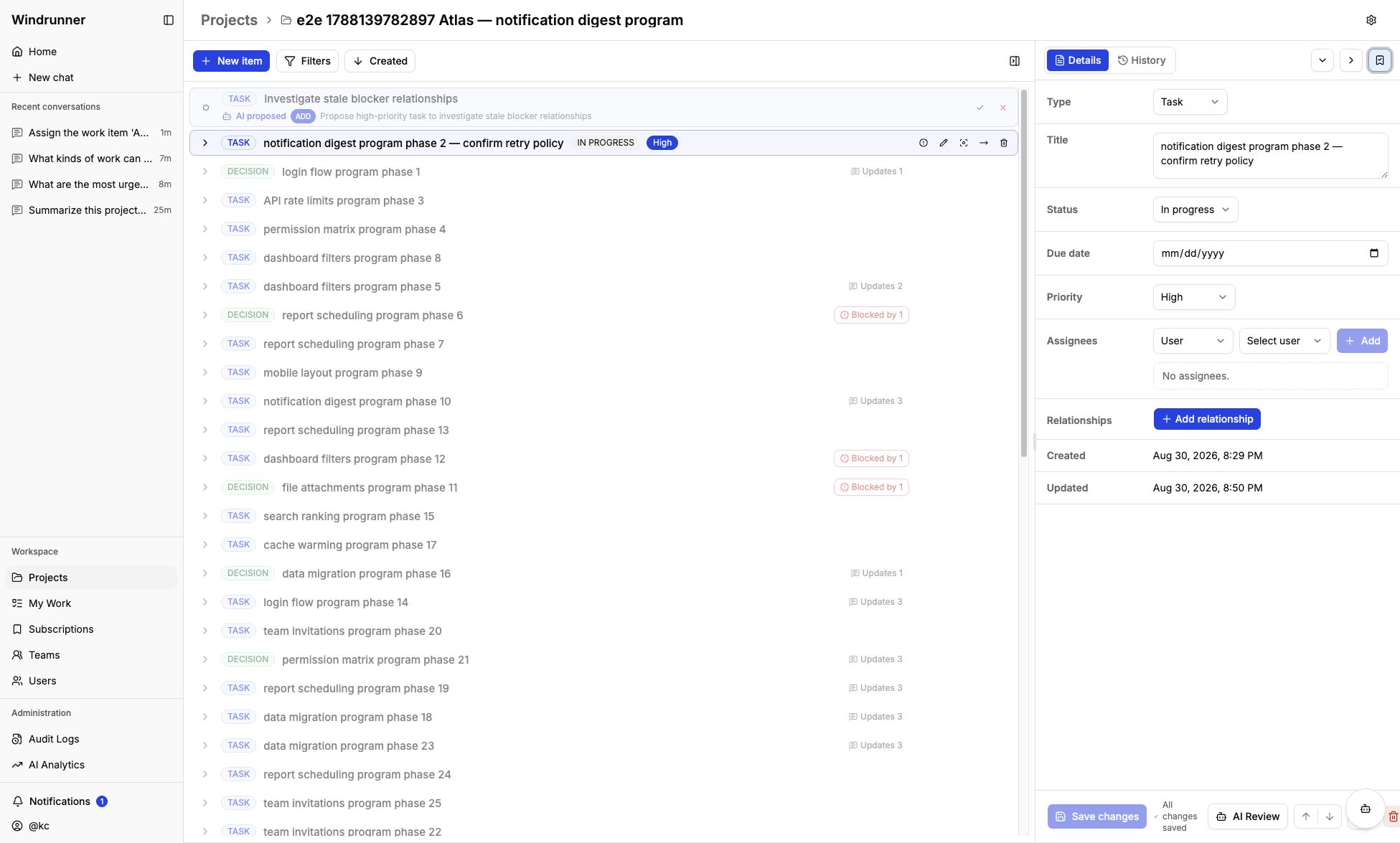
The Subscriptions page lists every work item you follow with its project and subscription time. Use Unsubscribe there to stop following the item. Assignment notifications are separate and can still arrive when you are assigned work.
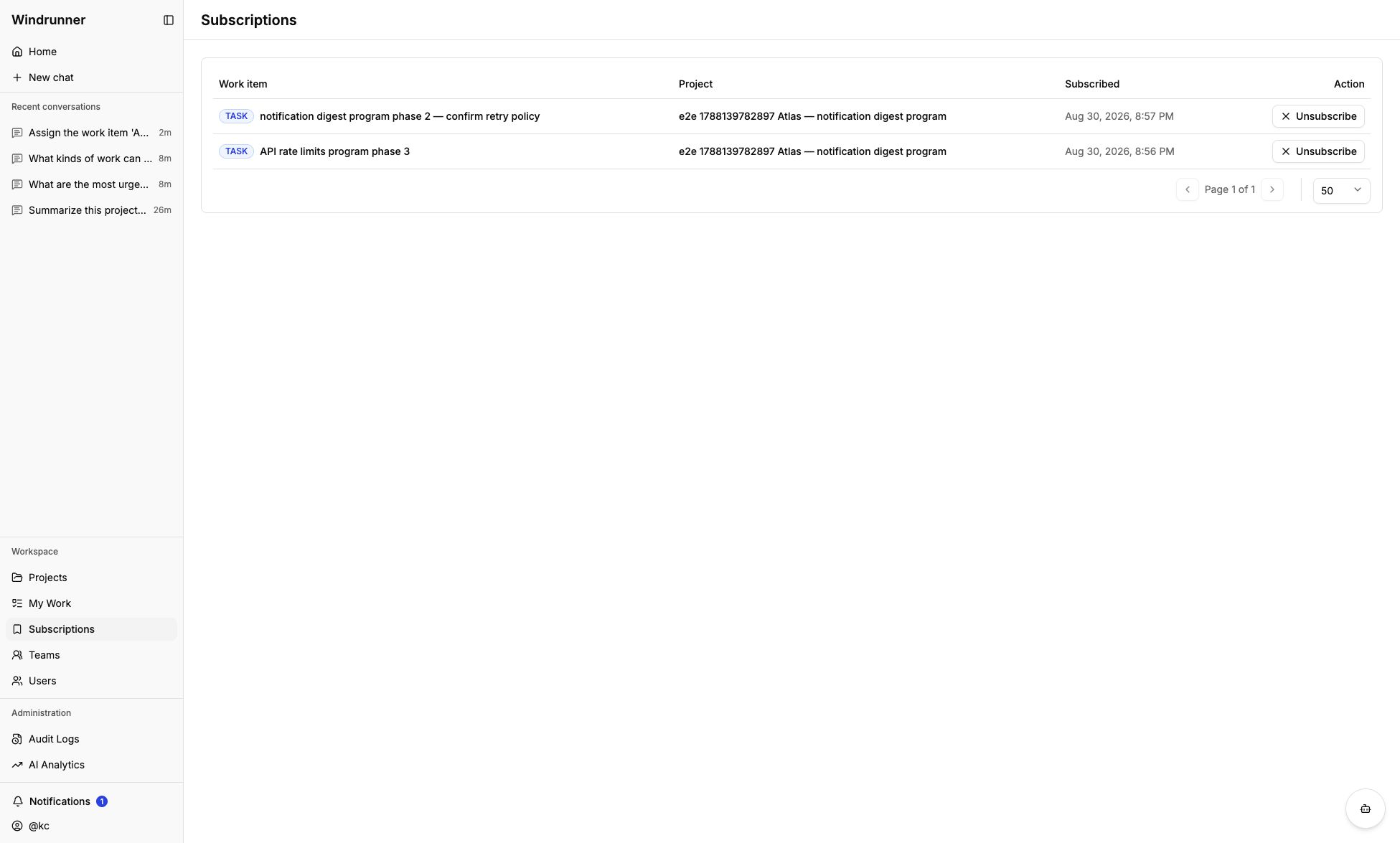
Email notifications
When your administrator enables email, a new work-item assignment can also arrive in your inbox. This applies to work assigned directly to you or to a team you belong to, provided your account is active, has an email address, and has access to the project.
Assignments are collected for about two minutes so several work items can appear in one email. The email includes the project, work-item title, who assigned it, any team involved, the due date when present, and a link to the item.
You do not receive assignment email for assigning work to yourself. Being assigned directly and through a team does not produce duplicate entries in the same email. If your assignment or project access is removed before delivery, the item is omitted.
Subscribing does not enable email for every edit. Routine work-item edits and subscription activity do not generate email, and marking an in-app notification read does not cancel an assignment email.
Email is controlled by the administrator for the installation; there are no individual email preferences yet. Administrators can follow the email setup guide.
In-app notifications
The notification center in the navigation sidebar surfaces assignment and work-item activity updates. Open a notification to mark it read and jump to its project when a project link is available, or mark all notifications read from the center.