Quick start
Windrunner starts with a question. Add workspace context only when you need it.
1. Open Home
After signing in, open Home and ask a question such as:
What needs my attention today?
Suggested prompts fill the input without sending it.
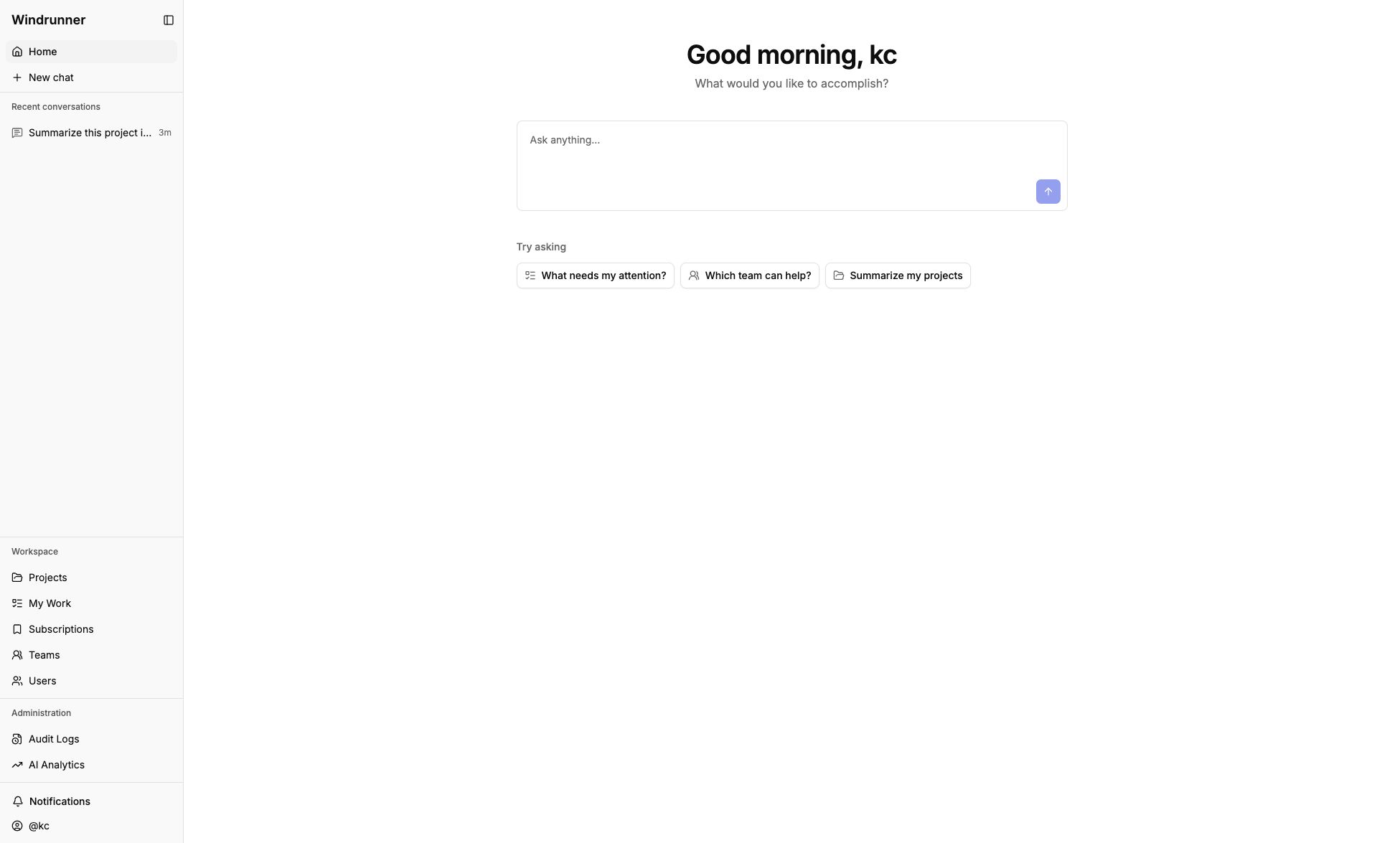
2. Continue in AI Agent
Your question opens in AI Agent. Use the sidebar to switch between conversations or start a separate chat for a new topic.
3. Add context when needed
Add a project, team, user, or work item when the question needs a specific source. Opening AI Agent from a workspace page also provides that page as context. If a project-specific question has no project selected, AI Agent asks you to choose one instead of guessing.
4. Use AI Agent to create or update work
AI Agent can draft or update work items, entries, and relationships. Proposals appear in the project workspace for review; they do not change data until you accept them.
5. Work directly in the workspace
Use Projects to organize work, Teams and Users for people context, and My Work for items assigned to you. See Using AI assistance for AI actions.